Invoices
Overview
The Invoices feature in the Centric System allows businesses to create, manage, and track customer invoices efficiently. It supports recurring invoices, tax invoices, and multiple payment options. With real-time status tracking and customization features, users can maintain accurate financial records and improve billing workflows.
How to Access
To access the Invoices section:
- Log in to the Centric System dashboard.
- From the left sidebar, click on Sales.
- Select Invoices from the dropdown menu.
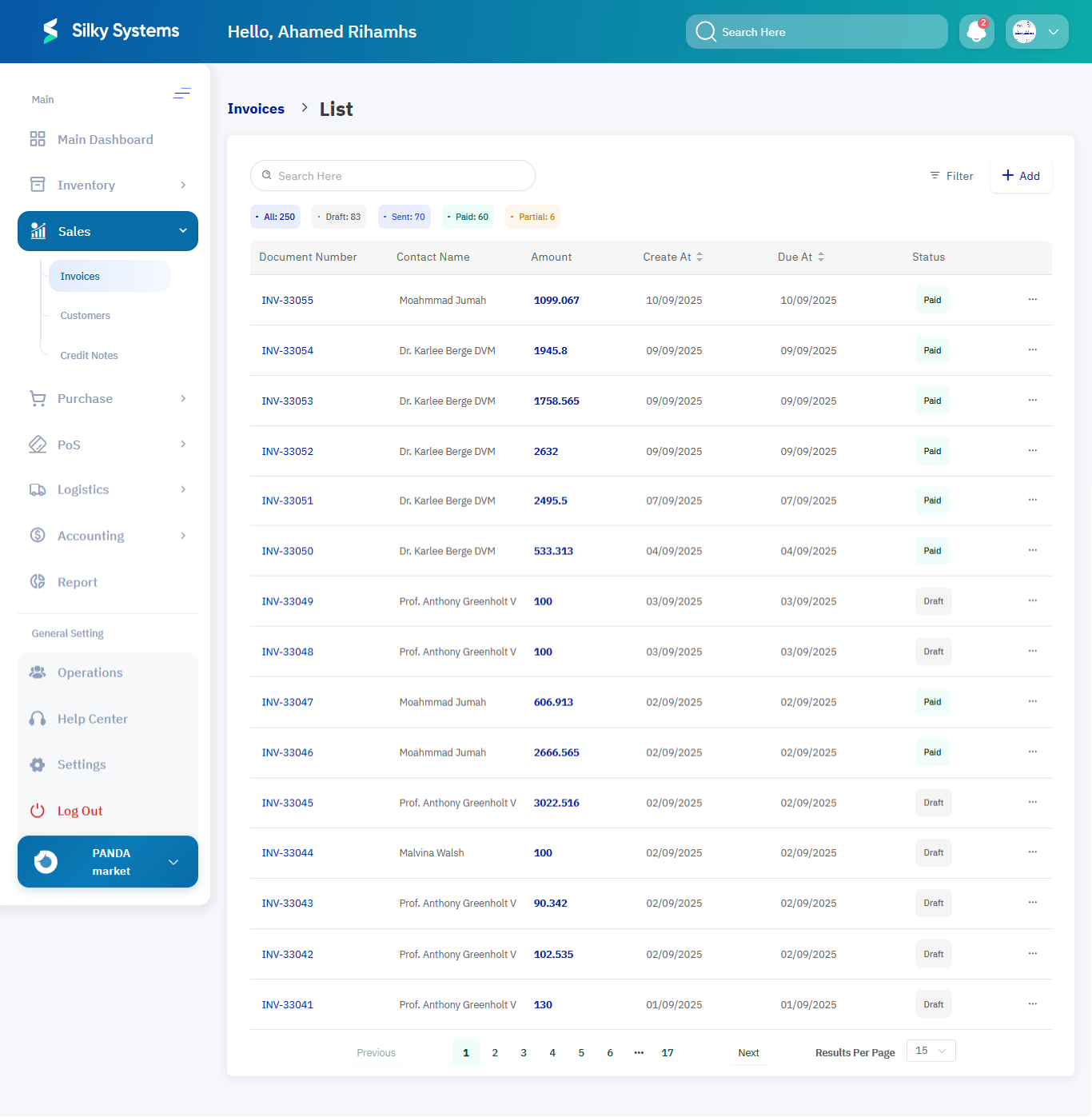
- The Invoice List View will appear, showing all invoices created in the system.
1. Invoice List View
The Invoice List page displays all invoices with filtering options by date, status, or amount. A dedicated tab is also available for recurring invoices.
- Document Number – Unique reference code for each invoice.
- Contact Name – Customer associated with the invoice.
- Amount – Total invoice amount.
- Create At – Invoice creation date.
- Due At – Payment due date.
- Status – Current invoice status (Draft, Sent, Paid, Partial).
Invoice Actions
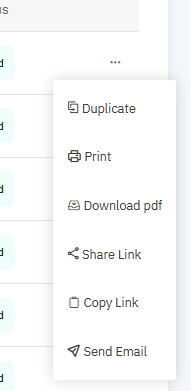
Users can perform quick actions on existing invoices directly from the list view:
- Duplicate – Create a copy of the invoice with the same details.
- Print – Print the invoice for physical records.
- Download PDF – Export the invoice in PDF format for sharing or storage.
- Share Link – Generate a shareable link for the invoice.
- Copy Link – Copy the invoice link to clipboard.
- Send Email – Email the invoice directly to the customer.
Invoice Statuses
Invoices may have the following statuses:
- Draft – Not yet sent to the customer.
- Sent – Emailed to the customer.
- Viewed – Opened by the customer.
- Paid – Confirmed manually or automatically.
- Partial – Only part of the total has been paid.

2. Creating a New Invoice
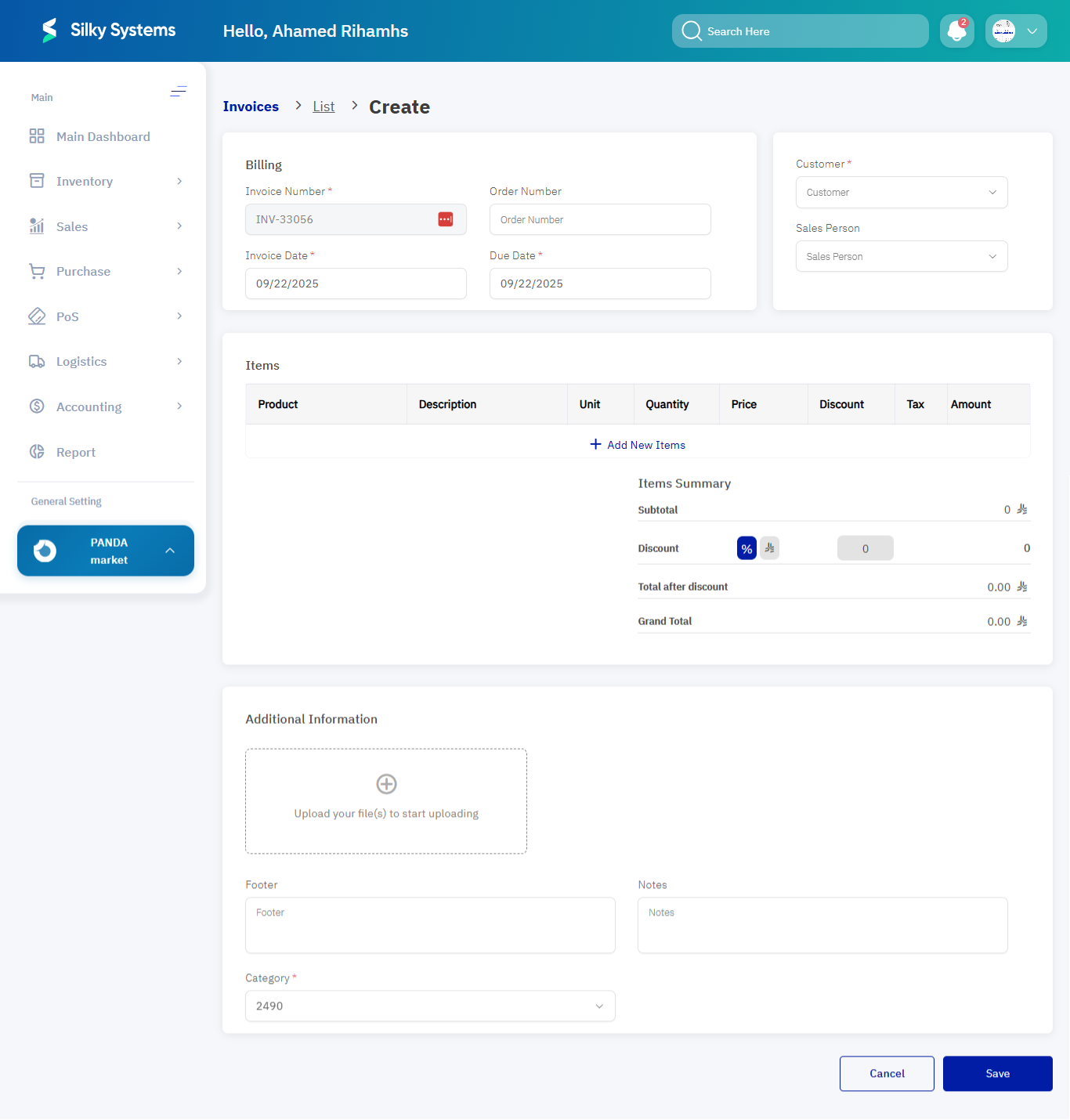
To create a standard invoice:
- From the Invoices page, click Create Invoice.
- Enter billing details:
- Invoice Number – Unique reference (auto-generated or manual).
- Order Number – Optional order reference.
- Invoice Date and Due Date.
- Customer – Choose an existing customer or add a new one.
- Sales Person – Assign a responsible staff member.
- Click Save to generate the invoice.
Adding Products or Services
When creating an invoice, add items from the products/services list:
- Quantity – Number of units.
- Price – Editable per unit.
- Taxes – Multiple tax options supported.
- Total – Auto-calculated based on price, quantity, and discounts.
Advanced Options
Enhance invoices with additional details:
- Notes – Add instructions or comments.
- Category – Useful for reporting and classification.
- Attachments – Upload contracts, product images, or supporting documents.
4. Advanced Features
-
Customization – Use invoice settings to apply logos, footers, or layout changes.
-
Payment Management:
- Add Payment: Manually update invoice status when payment is received.
- Delete Payment: Reverse incorrect payment entries.
Access Rules
- Only users with Admin or Sales Manager roles can create, edit, or delete invoices.
- Invoices cannot be deleted if linked to financial reports or confirmed payments.
Benefits
- Automation: Simplifies recurring billing and invoicing processes.
- Accuracy: Ensures financial records are consistent and up to date.
- Flexibility: Supports customization and multiple tax/payment options.
- Tracking: Provides clear visibility of invoice statuses and customer interactions.
- Integration: Seamlessly integrates with Accounting, Customers, and Payments modules.