Customers
Overview
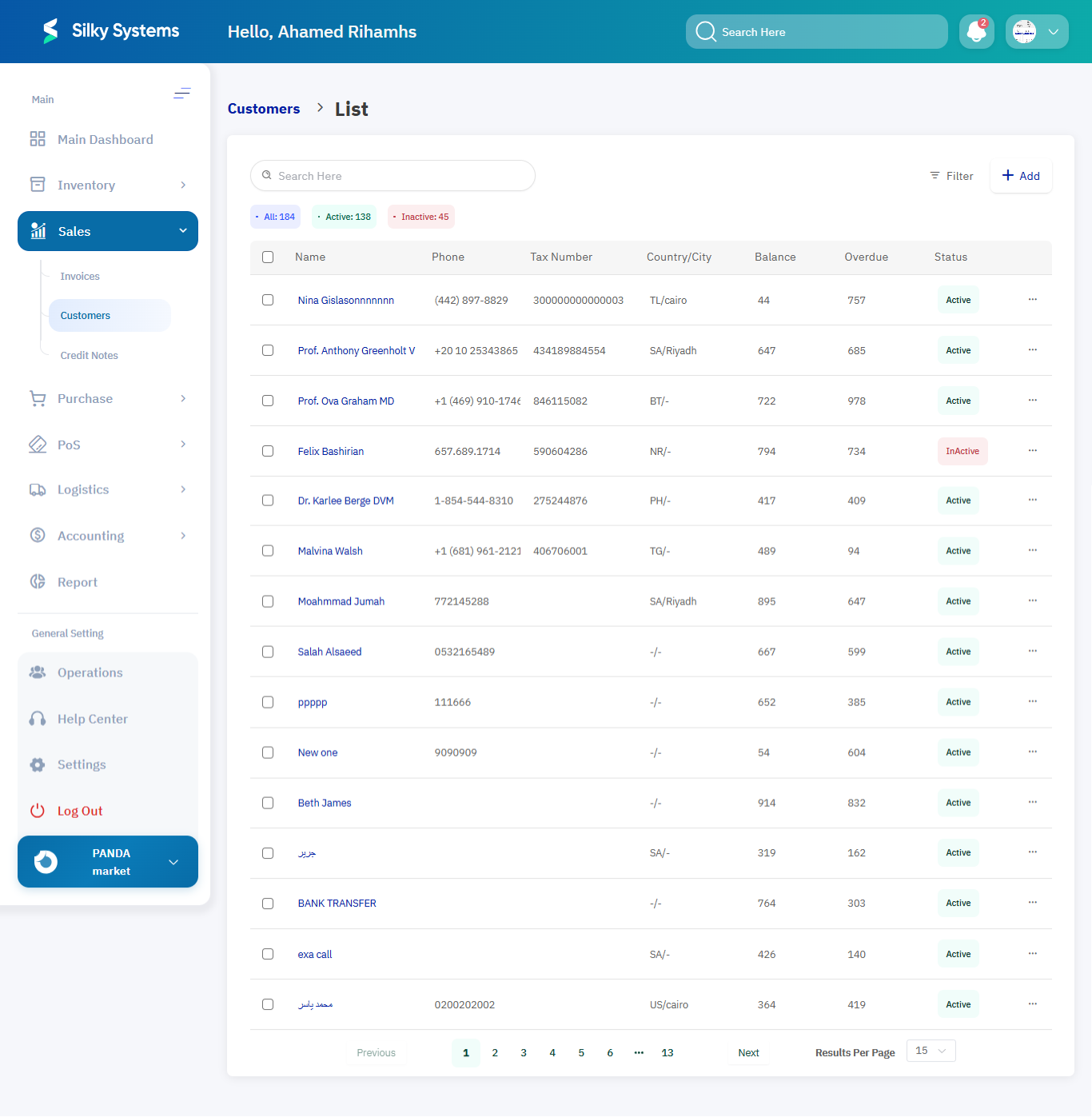
The Customers module in the Centric System allows businesses to manage customer information, maintain accurate contact records, and integrate customer data with invoices, payments, and reports. This ensures better tracking of customer activity, financial history, and communication.
How to Access
To access the Customers section:
- Log in to the Centric System dashboard.
- From the left sidebar, click on Sales.
- Select Customers from the dropdown menu.
- The Customers List View will appear.
Creating a New Customer
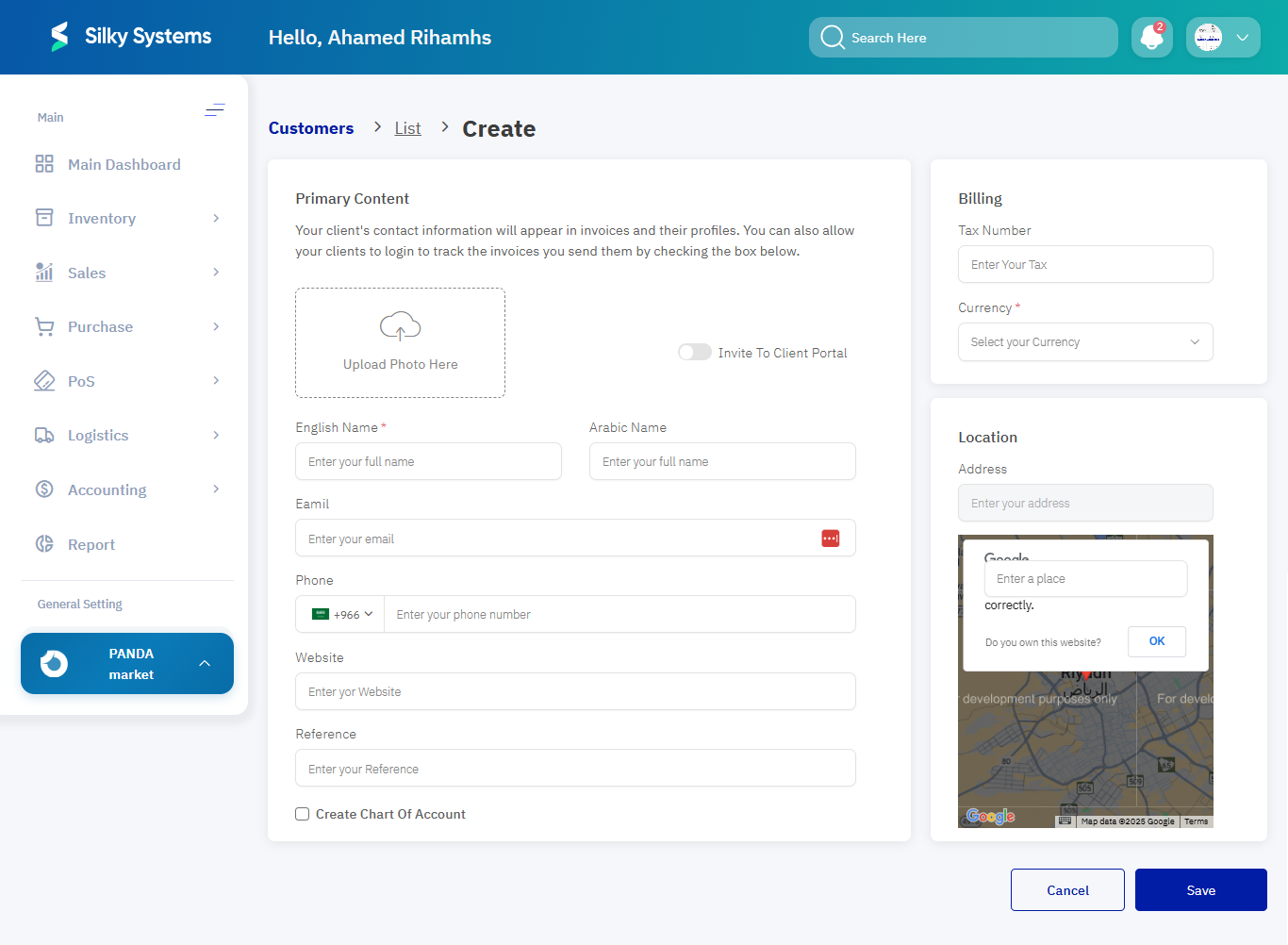
After clicking New Customer, fill in the following information:
- Name Customer’s full name. Example: Ahmed Al-Ghamdi
- Email Customer’s email address. Example: ahmed@example.com
- Invite to Client Portal Toggle to enable/disable. When enabled, the customer can log in to view/pay invoices.
- Phone Customer’s contact number. Example: +966 50 123 4567
- Website Customer’s website URL (if applicable). Example: www.example.com
- Reference Additional notes or internal reference. Example: VIP Customer – Preferred Discount 10%
- Tax Number Customer’s or Vendor’s tax ID. Example: 310456789100003
- Currency Default currency for transactions. Example: SAR (Saudi Riyal)
- Address Enter the customer’s full address. Example: Riyadh, Olaya District, Street 10
Post-Creation Management
On the Customers main page, users can:
- Filter by status (Active/Inactive).
- Export data to Excel or PDF.
- Use Duplicate to create similar customer profiles quickly.
Customer Actions
When hovering over a customer, the following actions are available:
- Show: View full customer details.
- Edit: Modify existing data or status.
- Delete: Permanently remove the customer.
- Set Inactive: Temporarily disable a customer account.
- Block Portal Access: Prevent the customer from accessing the client portal.
- Add Tax Invoice: Directly generate a new tax invoice for the customer.

Additional Options
Import Customers
- Use the Import option to upload Excel files (.XLS/.XLSX format) for bulk customer creation.
Export Options
-
Export customer lists to:
- PDF (for printing/sharing)
- Excel (for data analysis)
Bulk Actions
- Enable or disable multiple accounts simultaneously.
- Assign categories or tags for segmentation.
Access Rules
- Only users with Admin or Sales Manager roles can add, edit, or delete customers.
- Customers cannot be deleted if they have linked invoices or financial transactions.
Benefits
- Centralized Data: Maintain all customer records in one place.
- Seamless Integration: Automatically link customers with invoices, payments, and reports.
- Efficiency: Simplifies communication and billing processes.
- Scalability: Supports bulk import/export and categorization for growing businesses.