Categories
Overview
The Categories feature in the Centric System is used to classify products and services into logical groups. Categories make it easier to organize inventory, streamline reporting, and simplify searching for products. Examples of categories include Beverages, Electronics, or Office Supplies. Subcategories can also be created to represent more detailed structures, such as Home Appliances under Electronics.
How to Access
To access the Categories section:
- Log in to the Centric System dashboard.
- From the left sidebar, click on Inventory.
- Select Categories from the dropdown menu.
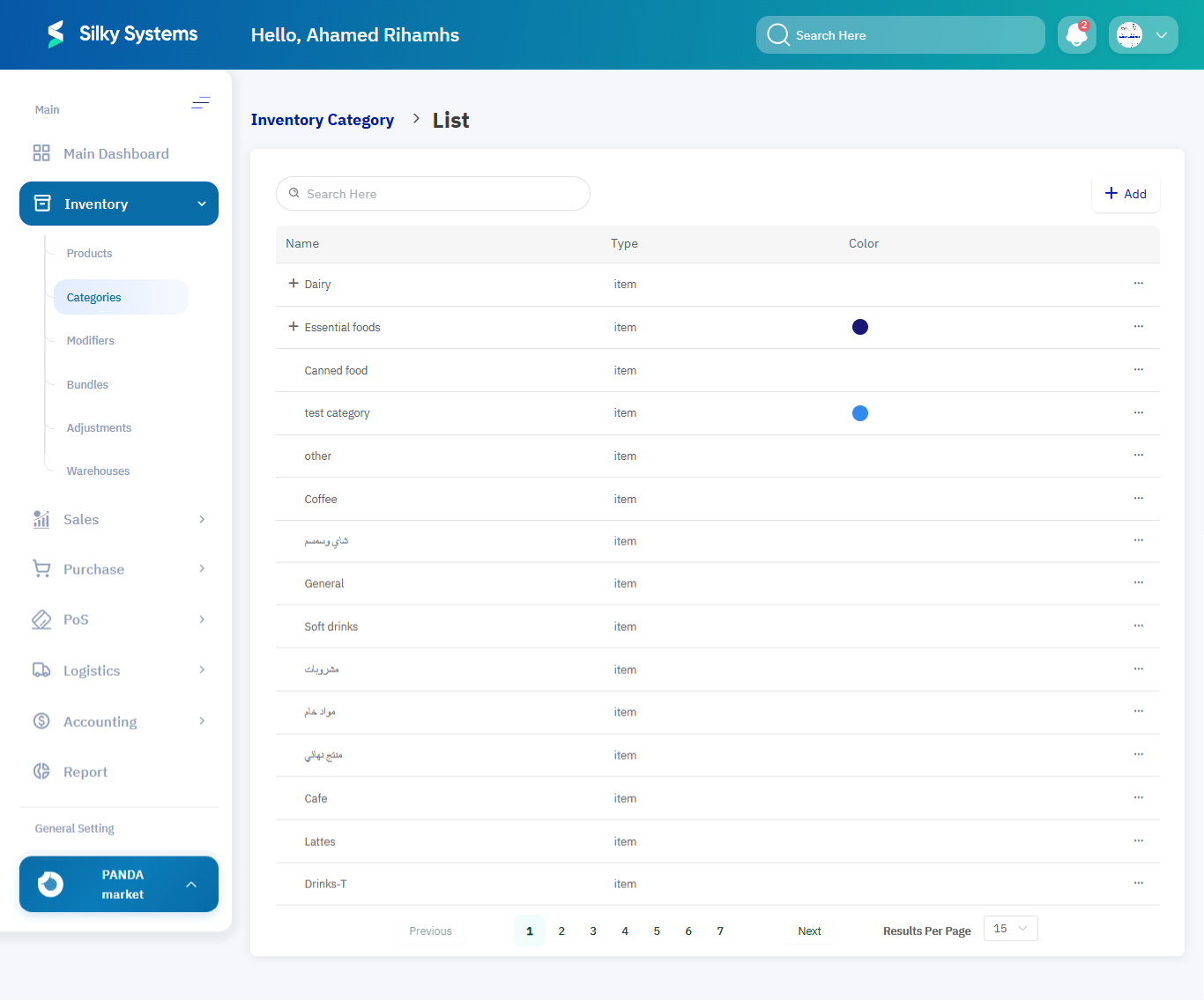
- The Category List View will appear, displaying all existing categories.
1. Category List View
The list view provides an overview of all categories created in the system. It includes:
- Name – Category name (English/Arabic).
- Type – Indicates whether the category is for items or other records.
- Color – Visual identifier assigned to the category.
Users can search, browse, and manage categories from this screen.
2. Adding a New Category
To add a new category:
- Click on the + Add button in the top-right corner of the Category List page.
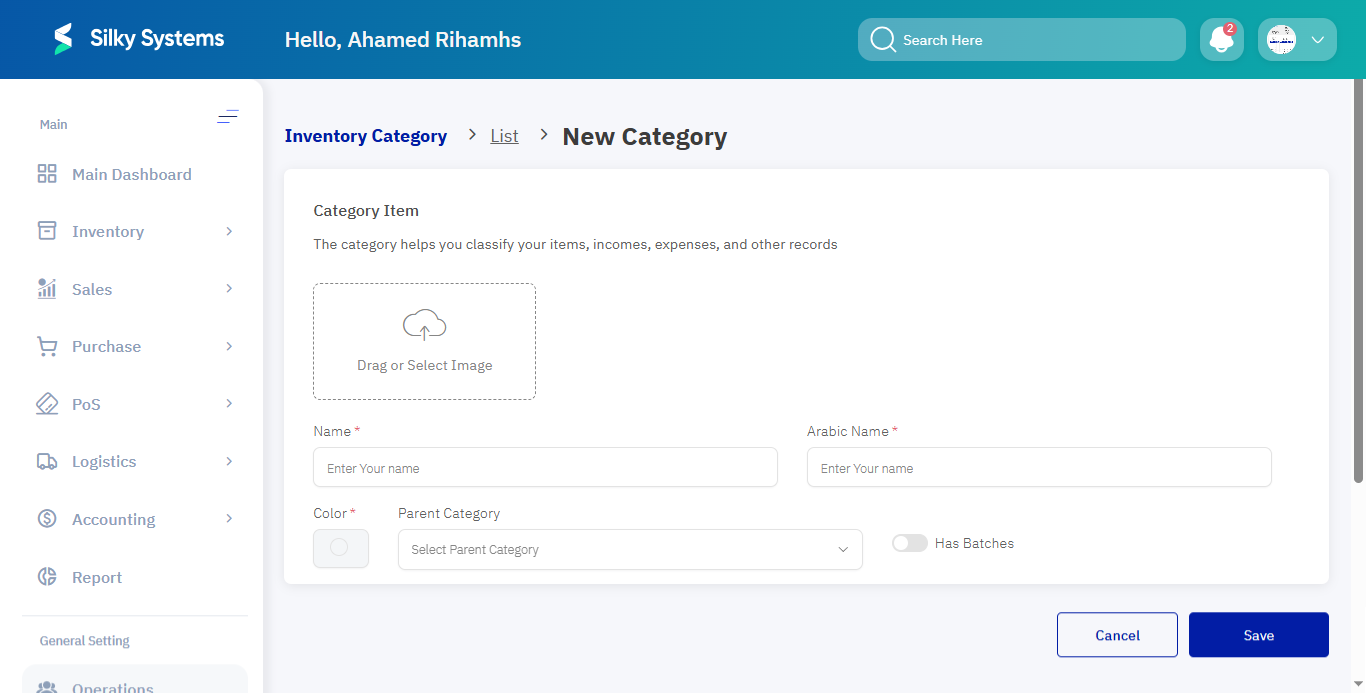
- Fill in the required details in the New Category Form.
Category Information Fields:
- Name – Enter the category name in English. Example: Electronics
- Arabic Name – Enter the category name in Arabic. Example: الإلكترونيات
- Color – Choose a color to visually identify the category. Example: Blue
- Parent Category (Optional) – Select a parent category if creating a subcategory. Example: Home Appliances
- Has Batches? – Enable if the products under this category are managed in batches.
3. Category Management Options
- Upload Image: Add an image or icon to visually represent the category.
- Edit Category: Modify an existing category’s details.
- Delete Category: Remove a category if not linked to active products.
- Subcategory Support: Organize categories in a hierarchical structure.
Access Rules
- Only users with Admin or Inventory Manager roles can add, edit, or delete categories.
- A category cannot be deleted if it is linked to existing products or transactions.
Benefits
- Organization: Group products logically for easier tracking and reporting.
- Flexibility: Support for both categories and subcategories.
- Efficiency: Color codes and images improve quick identification.
- Control: Role-based restrictions ensure secure management.