Bundles
Overview
The Bundles feature in the Centric System allows you to group multiple products together and sell them as a single package. Bundling improves sales opportunities, simplifies promotions, and ensures efficient management of grouped items. Each bundle can have its own SKU, barcode, and pricing, while still tracking the individual items included within it.
How to Access
To access the Bundles section:
- Log in to the Centric System dashboard.
- From the left sidebar, click on Inventory.
- Select Bundles from the dropdown menu.
- The Bundle List View will appear, displaying all existing bundles.
1. Bundle List View
The Bundle List page provides an overview of all bundles created in the system. It includes:
- Name – The name of the bundle.
- Category – The category assigned to the bundle.
- SKU – Stock Keeping Unit code for tracking.
- Barcode – Scannable code for quick lookup.
- Sales Price – Selling price of the bundle.
- Stock – Current available bundle stock.
- Available Date – Start date from when the bundle becomes available.
- Status – Active or Inactive.
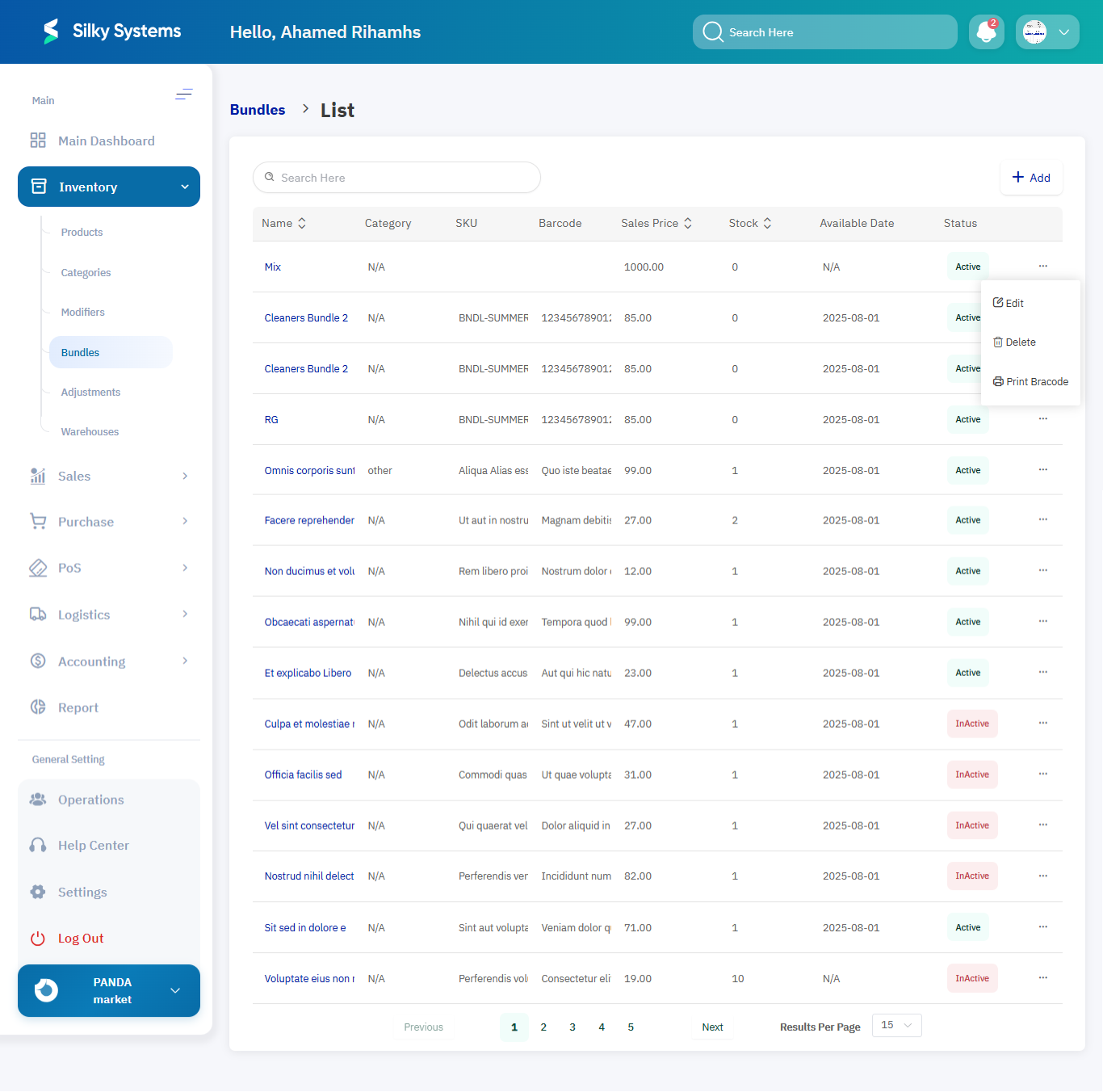
Bundle Actions:
- Edit – Modify bundle details.
- Delete – Remove a bundle (if not linked to transactions).
- Print Barcode – Generate and print barcodes for bundles.
2. Adding a New Bundle
To create a new bundle:
- Click on the + Add button at the top-right corner of the Bundle List page.
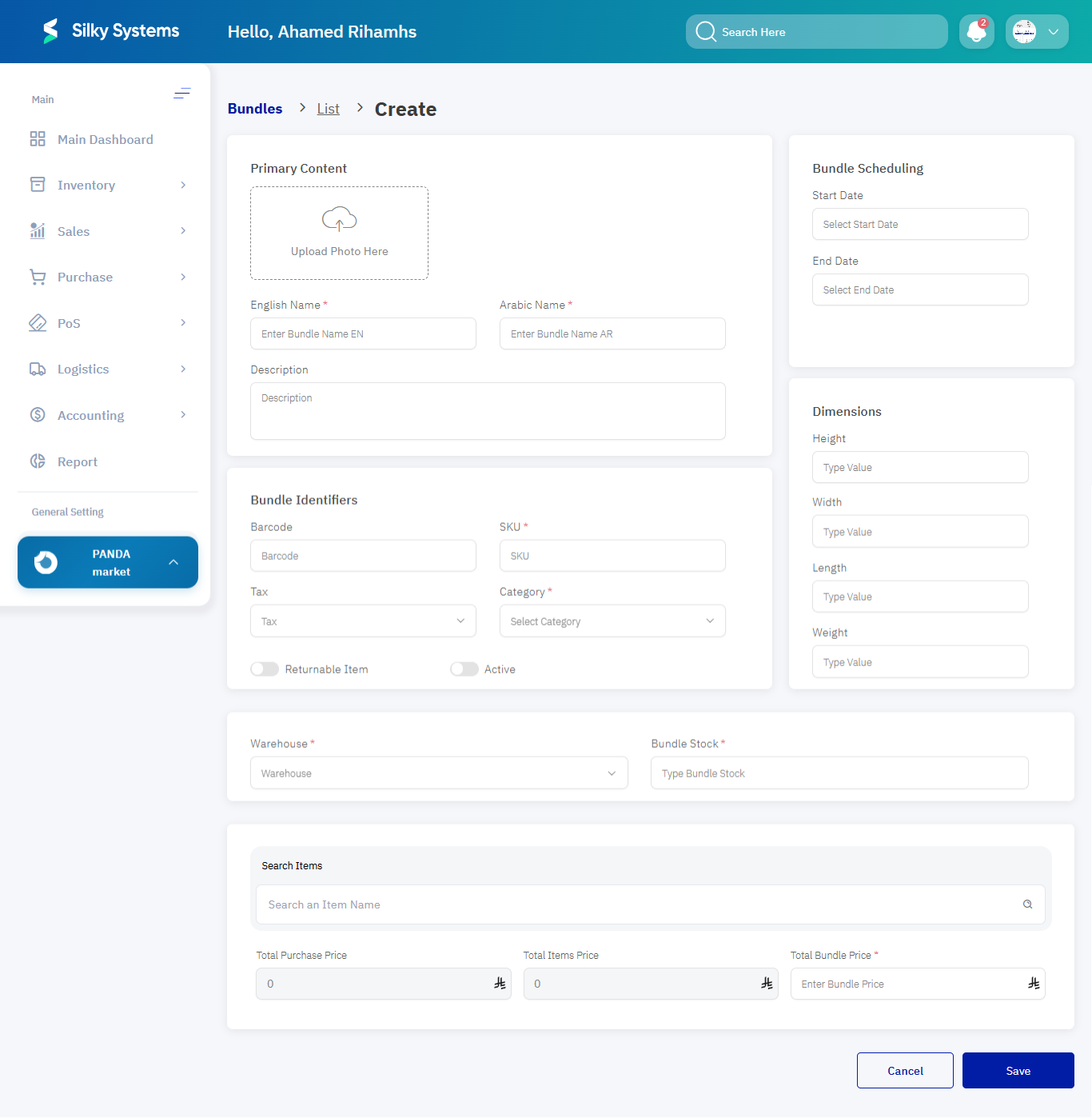
- Fill in the required details in the Create Bundle Form.
Bundle Information Fields:
- English Name – Enter the bundle name in English. Example: Ramadan Gift Basket
- Arabic Name – Enter the bundle name in Arabic. Example: سلة هدايا رمضان
- Description – Add a description of the bundle.
- SKU – Unique code for bundle tracking. Example: BNDL-SUMMER01
- Barcode – Barcode for quick scanning. Example: 12345678901
- Category – Assign a category to the bundle. Example: Seasonal Packages
- Tax – Apply tax if applicable. Example: VAT 15%
- Warehouse – Select the warehouse where the bundle is stored.
- Bundle Stock – Enter available stock for the bundle. Example: 200 units
- Bundle Scheduling – Define start and end dates for bundle availability. Example: Start: 2025-08-01, End: 2025-08-31
- Dimensions – Enter dimensions (Height, Width, Length, Weight) if required for logistics.
- Returnable Item – Mark if the bundle is returnable.
- Active – Toggle the active status of the bundle.
3. Adding Items to Bundles
Within the Create Bundle Form, you can search and add items to form a bundle:
- Search Items – Look up products to include in the bundle.
- Total Purchase Price – Automatically calculated based on selected products.
- Total Items Price – Combined price of all items before discount.
- Total Bundle Price – Final selling price of the bundle (can be adjusted). Example: Bundle value SAR 120, Selling price SAR 99
Access Rules
- Only users with Admin or Inventory Manager roles can add, edit, or delete bundles.
- Bundles cannot be deleted if they are linked to active sales or inventory transactions.
Benefits
- Promotions & Discounts: Create attractive packages to boost sales.
- Flexibility: Manage bundles with scheduling and pricing rules.
- Efficiency: Track both bundle-level stock and individual items.
- Integration: Bundles seamlessly integrate with Sales, POS, and Inventory modules.