Warehouses
Overview
The Warehouse feature in the Centric System represents physical or virtual locations where items are stored. Users can create multiple warehouses, enabling efficient distribution of stock across different branches, regions, or storage types. Each warehouse holds specific details such as its location, type, and contact information, ensuring proper traceability and communication. Warehouses act as the backbone of inventory operations, supporting purchasing, sales, logistics, and reporting.
How to Access
To access the Warehouse section:
- Log in to the Centric System dashboard.
- From the left sidebar, click on Inventory.
- Select Warehouses from the dropdown options.
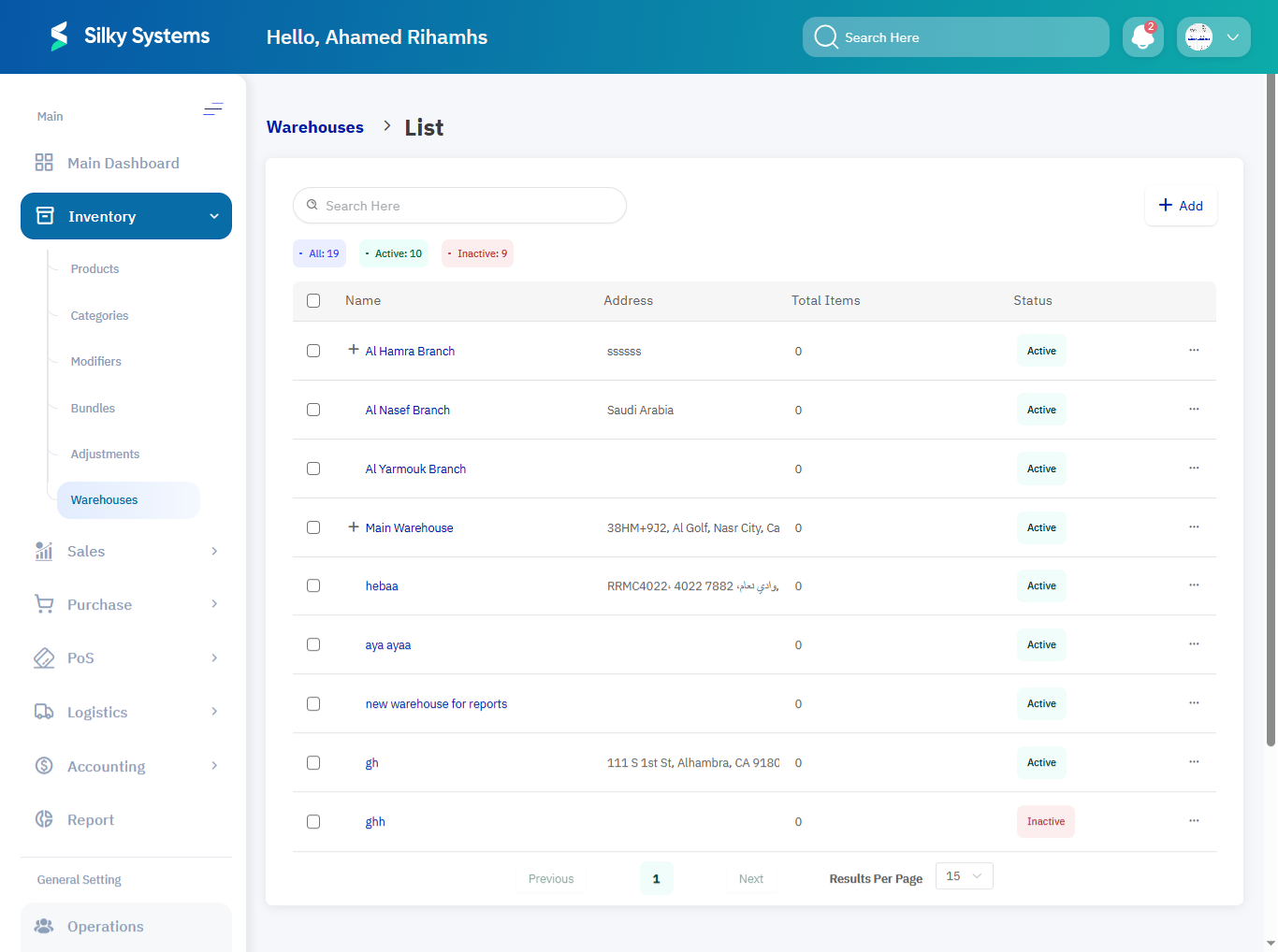
- The Warehouse List View will appear, showing all active and inactive warehouses.
1. Warehouse List View
The Warehouse list provides an overview of all warehouses created in the system. It includes the following columns:
- Name – The name of the warehouse.
- Address – The registered address of the warehouse.
- Total Items – Number of stock items linked to the warehouse.
- Status – Indicates whether the warehouse is Active or Inactive.
Users can search warehouses using the search bar and filter by All, Active, or Inactive status.
2. Adding a New Warehouse
To add a new warehouse:
- Click on the + Add button at the top-right corner of the list page.
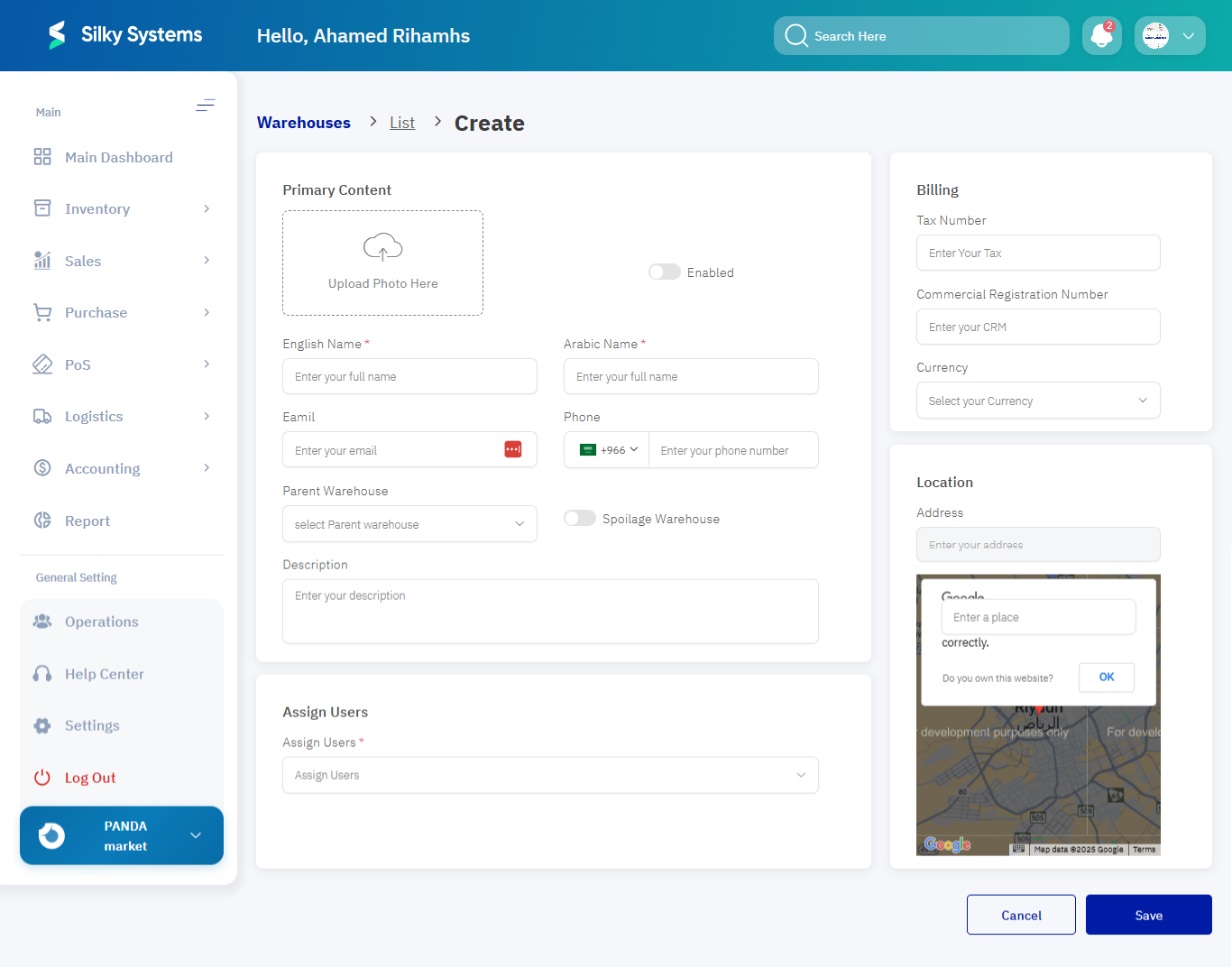
- Fill in the required details in the Create Warehouse Form.
Warehouse Information Fields:
- Warehouse Name – Unique name of the warehouse. Example: Central Storage – Riyadh
- Location – The city or country where the warehouse is located. Example: Riyadh, Saudi Arabia
- Address – Full address including street, district, and postal code. Example: King Fahd Rd, Al Olaya, Riyadh 12212
- Contact Person – Responsible individual for warehouse operations. Example: Saeed Al-Qahtani
- Phone Number – Contact number for communication. Example: +966 55 123 4567
- Email Address – Official email for correspondence. Example: saeed@warehouse.sa
- Linked Branch / Vendor – Associated branch or vendor. Example: Jeddah East Branch
- Warehouse Type – Type of warehouse (Main, Cold Storage, Dry Goods, Fulfillment Center, etc.). Example: Main – Dry Storage
- Default for Receiving – Defines if the warehouse is the default for receiving shipments. Example: Yes
3. Warehouse Management Options
When creating or editing a warehouse, users can manage additional configurations:
- Upload Photo: Add a representative image of the warehouse.
- Parent Warehouse: Link to a parent warehouse for hierarchical structuring.
- Spoilage Warehouse: Mark warehouse as spoilage-specific for damaged/expired goods.
- Assign Users: Allocate user roles responsible for managing the warehouse.
- Billing Information: Enter Tax Number, Commercial Registration Number, and Currency details.
- Google Map Location: Pinpoint the exact location using integrated Google Maps.
Access Rules
-
Only users with Admin or Inventory Manager roles can add or modify warehouses.
-
A warehouse cannot be deleted if:
- It contains active inventory.
- It is linked to current orders.
Benefits
- Multi-Warehouse Management: Handle multiple storage points from a single system.
- Efficient Tracking: Monitor stock availability and movements across locations.
- Enhanced Control: Assign responsible persons and restrict unauthorized changes.
- Flexibility: Support for various warehouse types such as main storage, cold storage, or fulfillment centers.
- Seamless Integration: Warehouse data syncs with Inventory, Sales, Purchase, and Logistics modules.