Adjustments
Overview
The Adjustments feature in the Centric System is used to manually update inventory quantities based on stock counts, damages, loss, spoilage, or data correction. Adjustments ensure that actual physical stock matches system records, maintaining accuracy in reporting and decision-making.
How to Access
To access the Adjustments section:
- Log in to the Centric System dashboard.
- From the left sidebar, click on Inventory.
- Select Adjustments from the dropdown menu.
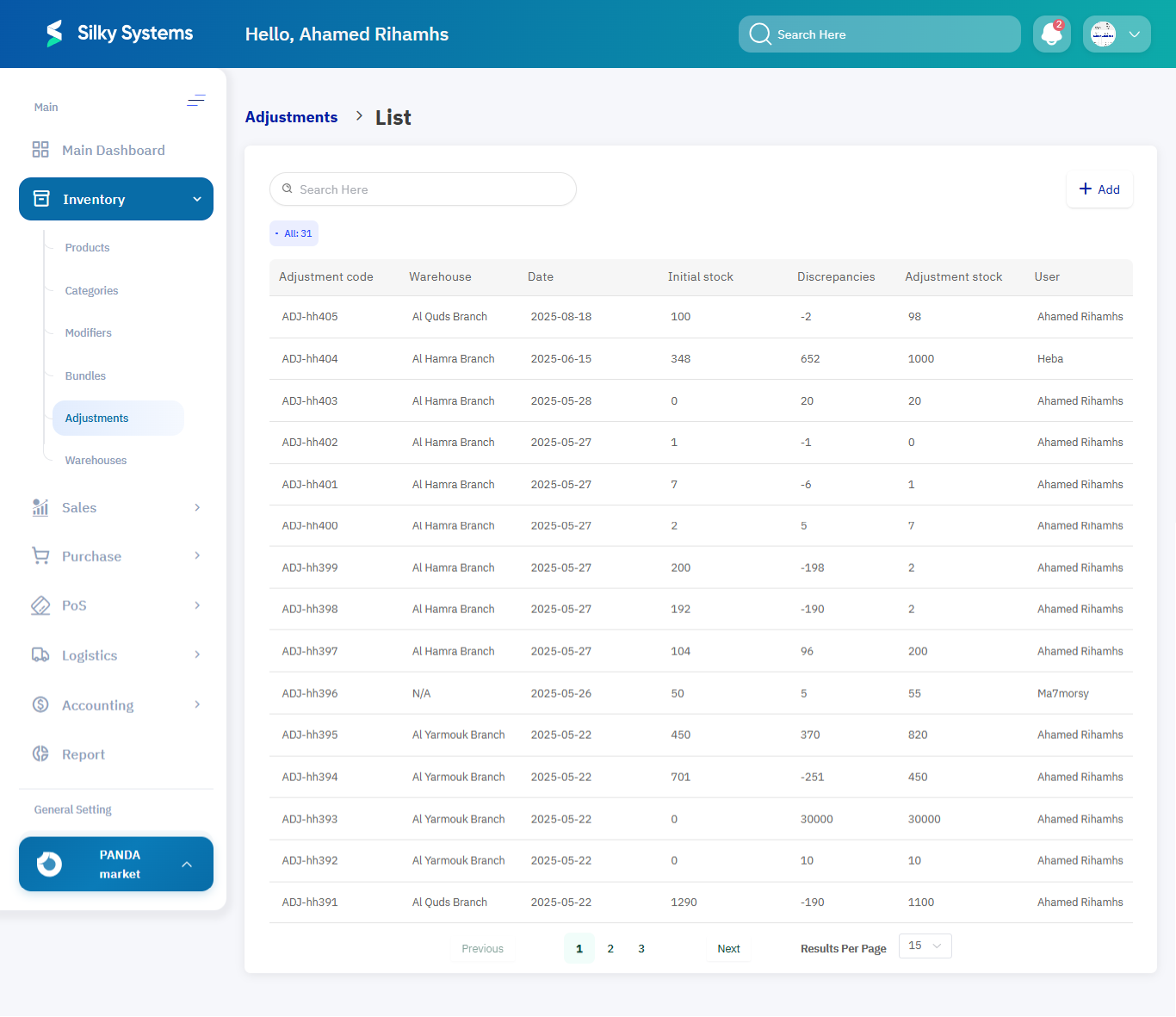
- The Adjustment List View will appear, displaying all stock adjustment records.
1. Adjustment List View
The Adjustment List page shows all adjustments made in the system. It includes:
- Adjustment Code – Unique reference number for each adjustment.
- Warehouse – Location where the adjustment took place.
- Date – Date of adjustment.
- Initial Stock – Quantity before adjustment.
- Discrepancies – Difference between actual and recorded stock.
- Adjustment Stock – Final adjusted stock quantity.
- User – Person responsible for the adjustment.
2. Creating a New Adjustment
To create a new adjustment:
- Click on the + Add button on the Adjustment List page.
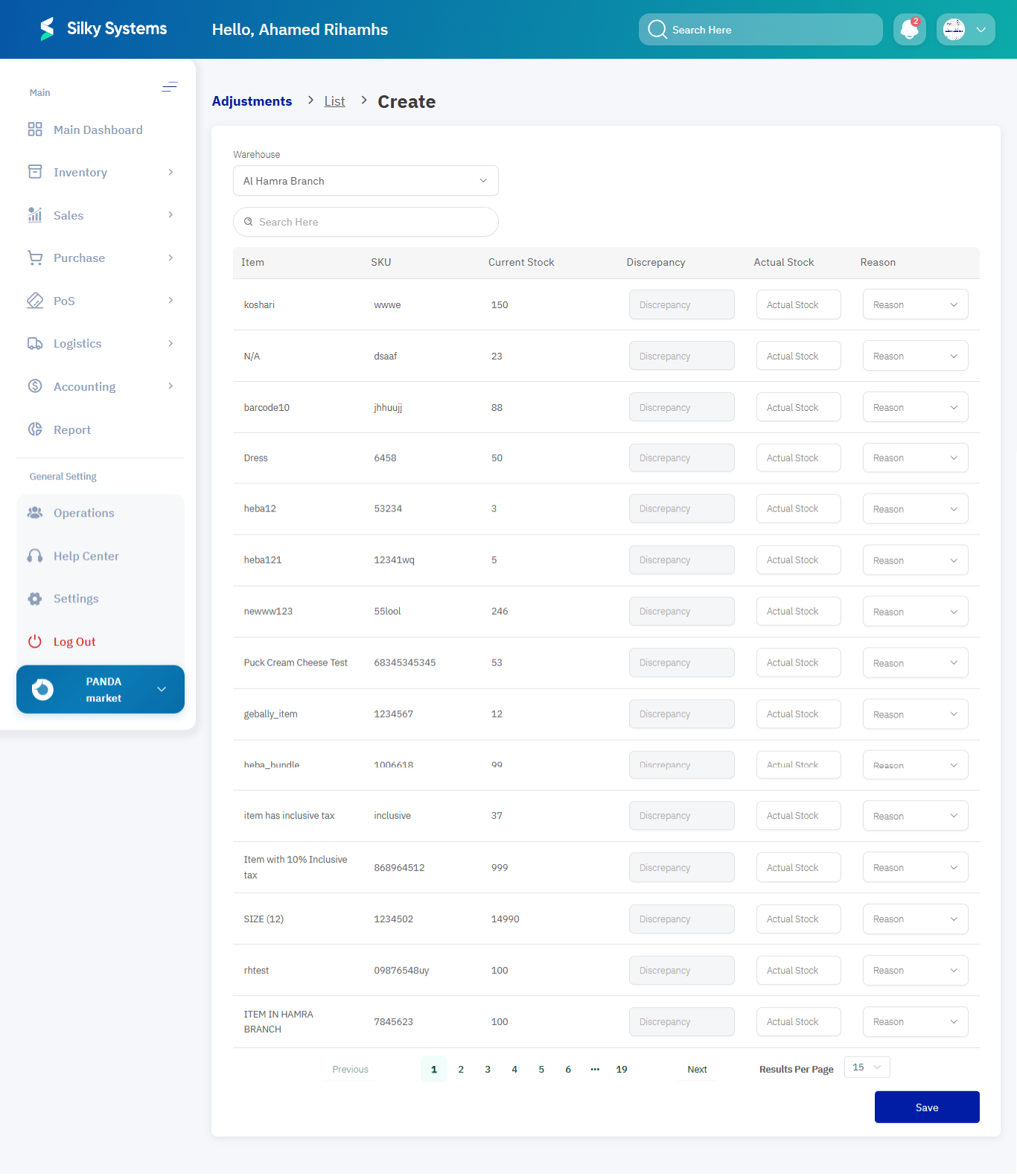
- Fill in the required details in the Create Adjustment Form.
Adjustment Information Fields:
- Warehouse – Select the warehouse where adjustment is taking place. Example: Al Hamra Branch
- Item – Select the product being adjusted. Example: Item with inclusive tax
- SKU – Unique identifier of the product. Example: 861956098190
- Current Stock – System-recorded stock before adjustment. Example: 999
- Discrepancy – Difference between actual and system stock. Example: 49
- Actual Stock – Enter the actual physical count after checking. Example: 950
- Reason – Select reason for adjustment (Damaged, Missing, Expired, Data Entry Error, etc.). Example: Damaged
3. Managing Adjustments
- Search Adjustments: Filter adjustments by warehouse, date, or adjustment code.
- Edit Adjustment: Update details of an adjustment entry.
- Delete Adjustment: Remove adjustment records if created in error.
- Discrepancy Tracking: View differences between expected and actual stock.
Access Rules
- Only users with Admin or Inventory Manager roles can create or edit adjustments.
- Adjustments cannot be deleted if linked to completed transactions or reports.
Benefits
- Accuracy: Ensures physical and system stock records are aligned.
- Transparency: Tracks who performed the adjustment and why.
- Error Correction: Rectifies data entry errors and unexpected discrepancies.
- Flexibility: Supports multiple reasons such as damage, expiry, or shrinkage.