Bills
Overview
The Bills feature in the Centric System serves as the official record of company expenses and payments to vendors. It helps businesses document purchases, track accounts payable, and manage settlement statuses. Bills are usually recorded as unpaid when created and updated to paid once settled. This ensures proper financial tracking and vendor relationship management.
How to Access
To access the Bills section:
- Log in to the Centric System dashboard.
- From the left sidebar, click on Purchase.
- Select Bills from the dropdown menu.
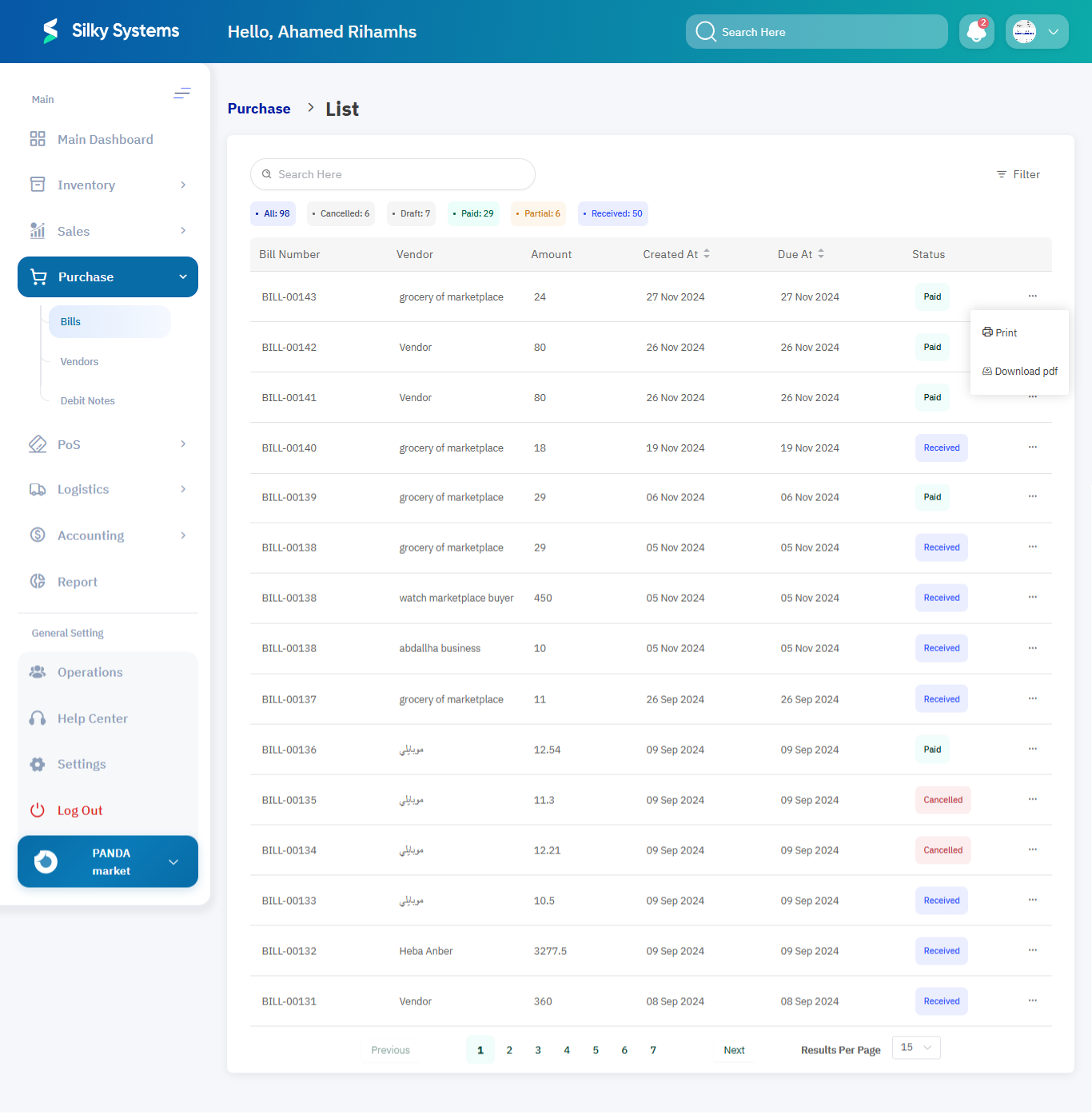
- The Bills List View will appear, displaying all vendor bills.
1. Bills List View
Bills are displayed with options to filter and sort by date, status, or amount. Categories include:
- Overdue – Bills past their due date.
- Open – Pending bills.
- Draft – Incomplete bills.
- Paid – Fully settled bills.
- Partial – Partially paid bills.
- Received – Goods/services received but payment pending.
- Cancelled – Bills marked as cancelled.

Fields shown include:
- Bill Number – Unique reference code.
- Vendor – Supplier linked to the bill.
- Amount – Total bill amount.
- Created At – Bill creation date.
- Due At – Payment due date.
- Status – Current status of the bill.
2. Creating a New Bill
To create a new bill:
-
Click the New Bill button at the top-right corner.
-
Fill in the following fields:
- Vendor – Select the vendor from the dropdown or add a new one.
- Bill Date – Date of issuance (auto-filled).
- Due Date – Payment deadline.
- Bill Number – Auto-generated identifier (editable).
- Order Number – Reference number linked to a purchase order (optional).
- Items – List of purchased products/services from registered items.
Additional details:
- Description – Item details such as model/specifications.
- Quantity – Number of units purchased.
- Price – Unit price (auto-detected or entered manually).
- Tax – Apply one or multiple tax rates.
- Total – Automatically calculated (price, quantity, discount, tax).
- Notes – Add custom instructions (e.g., delivery terms).
- Category – Classify bill (e.g., Equipment, Services, Raw Materials).
- Attachments – Upload supporting documents.
3. Bill Status Updates
Bills may change statuses through manual updates:
- Mark Received – Confirm goods/services were delivered.
- Cancel – Invalidate incomplete transactions.
- Delete – Permanently remove a bill (admin only).
4. Bill Actions
Quick actions available on the bill list view:
- Print – Print the bill for records.
- Download PDF – Export the bill as a PDF document.
- Export – Download the bill list in Excel for analysis.
- Show – View complete bill details.
- Edit – Modify data in Draft status.
- Duplicate – Create a copy for similar bills.

Access Rules
- Only users with Admin or Purchase Manager roles can create, edit, or delete bills.
- Bills linked to completed financial transactions cannot be deleted.
Benefits
- Efficiency – Simplifies vendor bill management.
- Accuracy – Ensures financial records are up to date.
- Visibility – Provides real-time status updates.
- Integration – Works seamlessly with Vendors, Purchase Orders, and Accounting modules.